
Integration journey · Step 3 of 5
Your first API call
From credentials to a first screening request and its response.
This step-by-step guide is designed to provide you with the essential knowledge and tools to begin your integration journey with Neterium's API services.
By following this guide, you will:
- Gain a clear understanding of what the Neterium API offers and how it works.
- Conduct initial tests using our sandbox environment.
- Learn about the technical requirements needed to perform a successful integration.
- Discover where to access additional documentation and resources to complete a full-scale production integration.
Who is this guide for
This guide is primarily intended for Developers and Integration Engineers experienced with API technologies and related testing tools (such as Bruno or Postman), as well as compliance experts who collaborate with IT teams and possess sufficient technical knowledge to use these tools effectively.
Introduction to the Neterium screening solutions
Neterium provides two specialized screening solutions for distinct use cases: Jetscan for counterparty screening (such as client onboarding and ongoing monitoring) and Jetflow for transaction screening (such as payment screening). Both solutions are API only, built on the same technology stack, and run entirely in the cloud within an AWS Virtual Private Cloud. They are engineered for 24/7 high availability and horizontal scalability.
Both Jetscan and Jetflow are designed to ensure that no personal data from client transactions or customer records is ever stored, guaranteeing complete privacy to users and full compliance with data privacy regulations such as GDPR. All screening operations are performed in memory, and results are returned instantly to clients without any data retention.
The platform is accessible via REST APIs using JSON over the public internet, allowing seamless integration into existing systems and workflows.
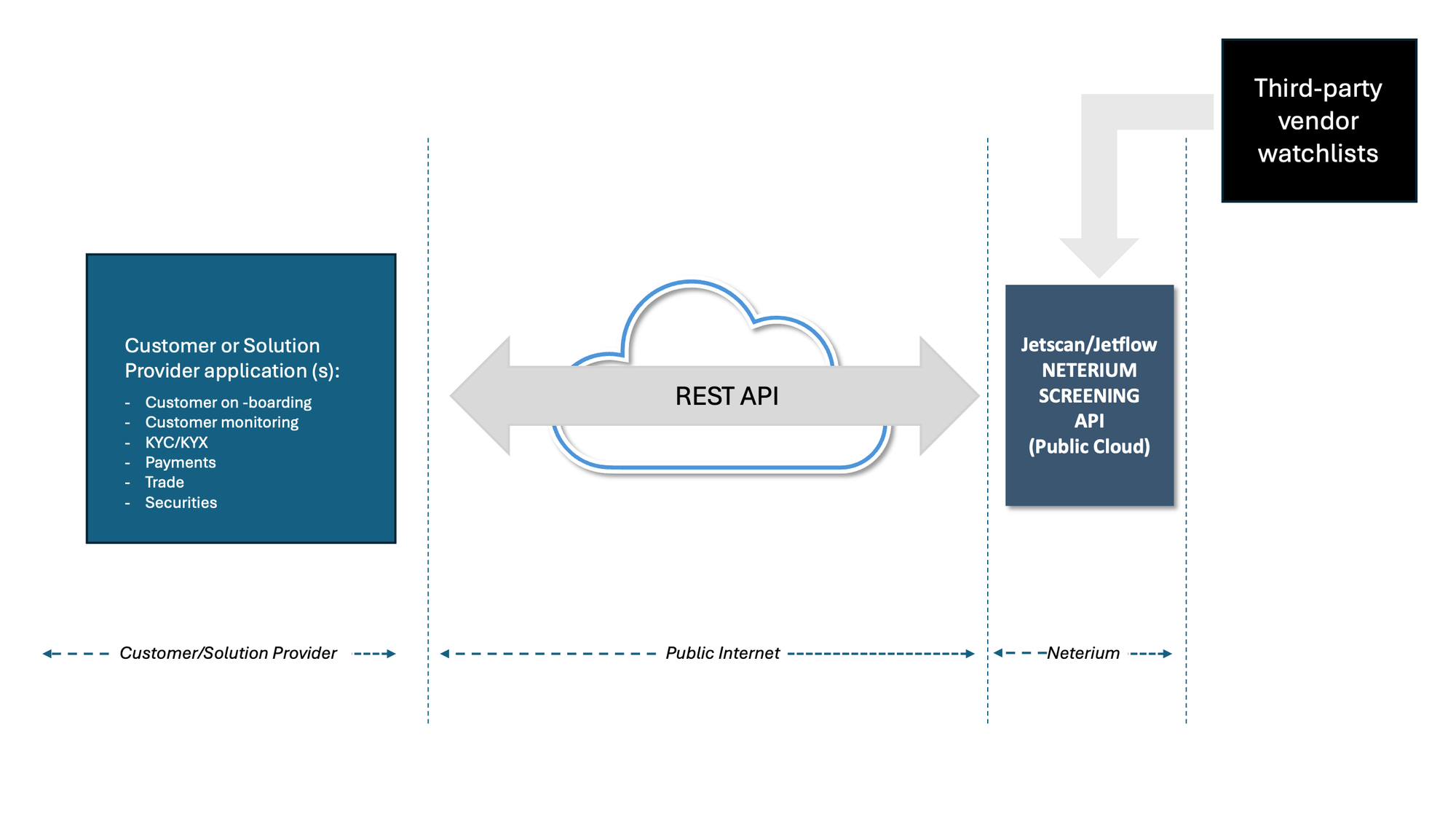
Screening is performed against watchlist content provided by third-party vendors (such as Dow Jones, LSEG, or Acuris). The updating of this content is fully managed by Neterium. In addition, the client can also provide their own private lists that can then be added to the list collections used for screening.
The API responses provide detailed screening results and audit information that are designed to be easily consumed by a workflow that typically includes Alert Management and Case Management systems.
In addition to the core screening APIs, Neterium offers a range of ancillary APIs that support related features such as rules management, list management, and system monitoring.
A comprehensive overview of the Neterium screening platform can be found in the first step of this journey, Core Screening Principles.
Prerequisites
To start testing the Neterium APIs, you will need to:
- Ensure you have internet access (all communications are encrypted over HTTPS TLS v1.2 or v1.3).
- Create an account on the Neterium platform.
- Configure your API testing tool (e.g. Postman or Bruno) to interact with the platform.
Creating a Neterium account
To create a Neterium account, follow these steps:
- Open the Developers Portal
Go to portal.neterium.io to access the sandbox environment.
- Click Sign Up
Then complete the registration form.
- Confirm your registration
Click the link in the confirmation e-mail.
That's it, you're all set! Your account is now active on the Neterium sandbox environment.
Setting up your API testing tool
You are free to use any tool you like to test our APIs in the Neterium sandbox. The examples and screenshots in this guide use Bruno, but tools like Postman or others will work just as well.
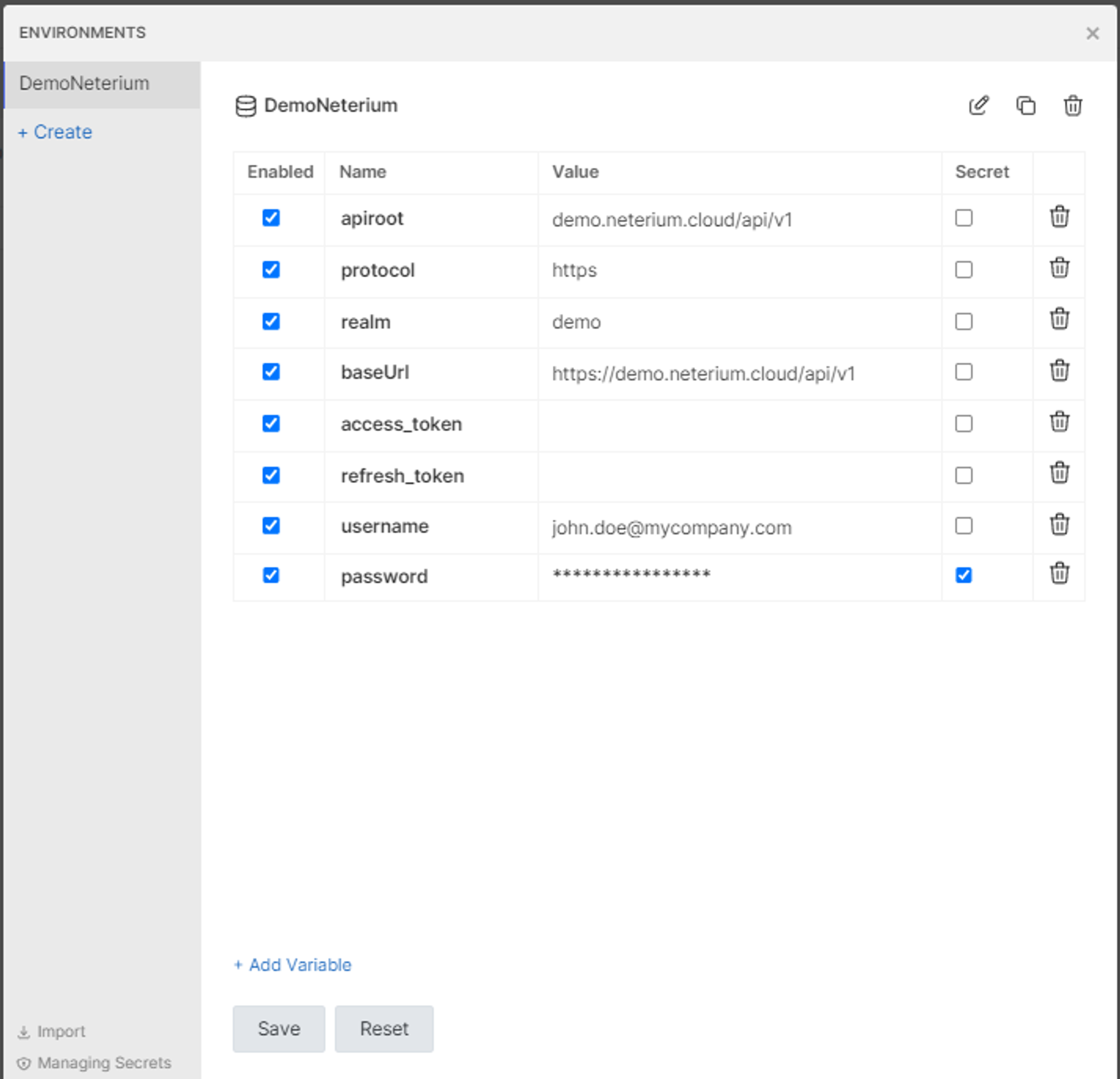
Open the menu in your API testing tool that allows you to create a new environment (e.g. “DemoNeterium”) and define the required environment variables as shown in the example below for that environment.
- Define and replicate the values of the
apiroot,protocol,realmandbaseUrlvariables. - Create the
access_tokenandrefresh_tokenvariables but leave their values empty. - Set the
usernameandpasswordvariables using your Neterium Portal credentials (i.e. the credentials used during registration).
Authentication
The Neterium API uses a Bearer Authentication scheme (also called token authentication) to authorize requests. The API client must therefore obtain a JWT token from our authentication service and add the Authorization header with each request sent to the API service.
The following request should be sent to obtain a token:
- HTTP method
- POST
- URL (endpoint)
https://connect-to-neterium.cloud/demo/token- Header
content-type: application/x-www-form-urlencoded- Data
- username=YOUR_USERNAME, password=YOUR_PASSWORD, grant_type=password, client_id=api
The setup process for API requests may vary slightly depending on the testing tool you use. The example below illustrates how to configure this request in Bruno.
- Create a Collection and a Request
Start by creating a Collection and subsequently a Request within that Collection.
- Select the body format
In the Body tab, select “Form URL Encoded” (upper right-hand corner in Bruno).
- Specify the request
For that initial Request, specify the HTTP method (POST), the endpoint and the different key/value pairs in the Body (note the use of the previously defined environment variables
protocol,realm,username,password).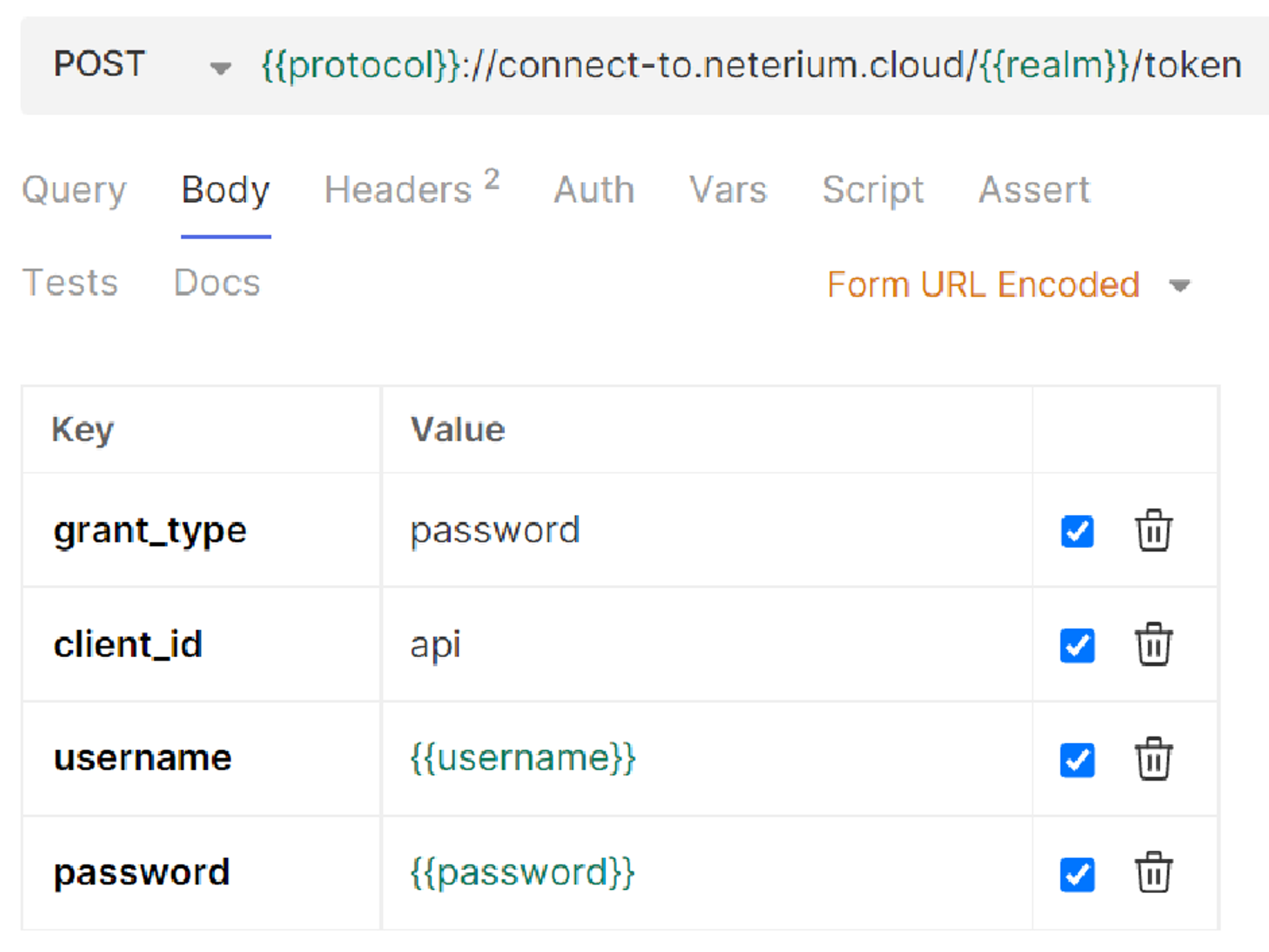
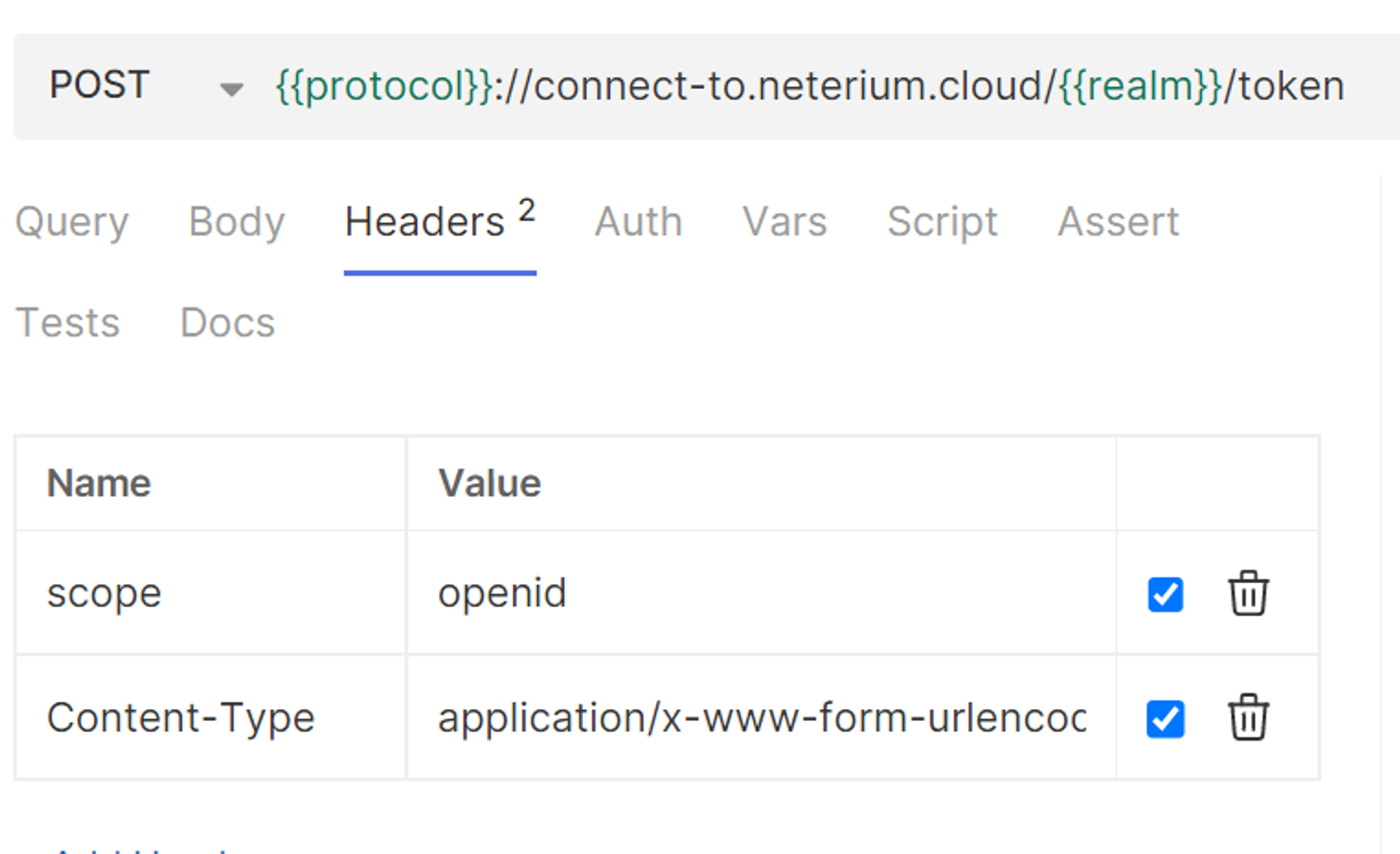
- Define the header
The next step is to define the header in the Headers tab, using the value in the section above.
- Store the token
Finally, make sure that the received token is stored in the
access_tokenenvironment variable defined for that purpose. In Bruno, this can be done from the Script tab by adding the following two lines in the Post Response section.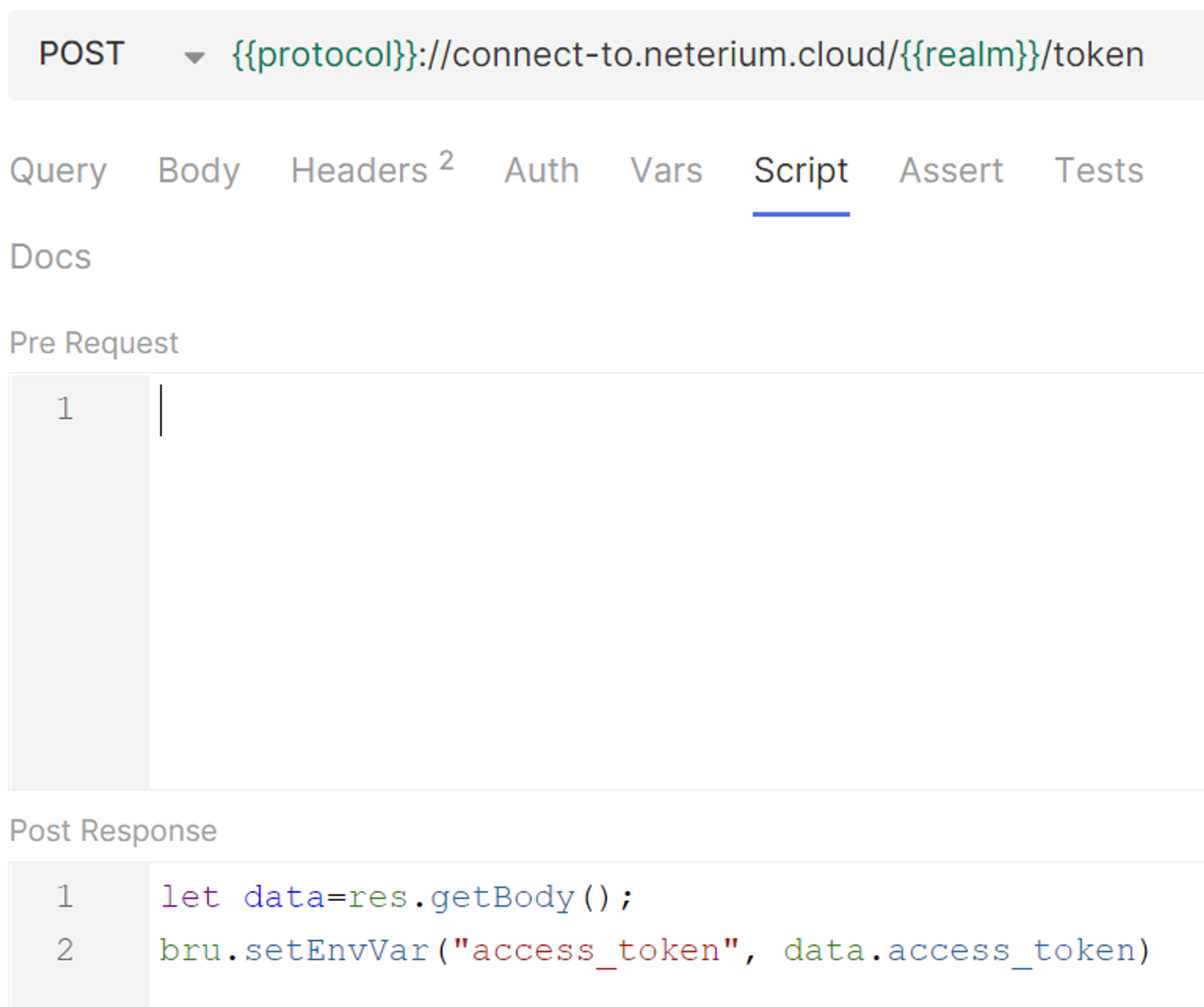
Once the request has been fully specified and saved in your API testing tool, you can send it to obtain an authentication token. The response should look similar to the example below:
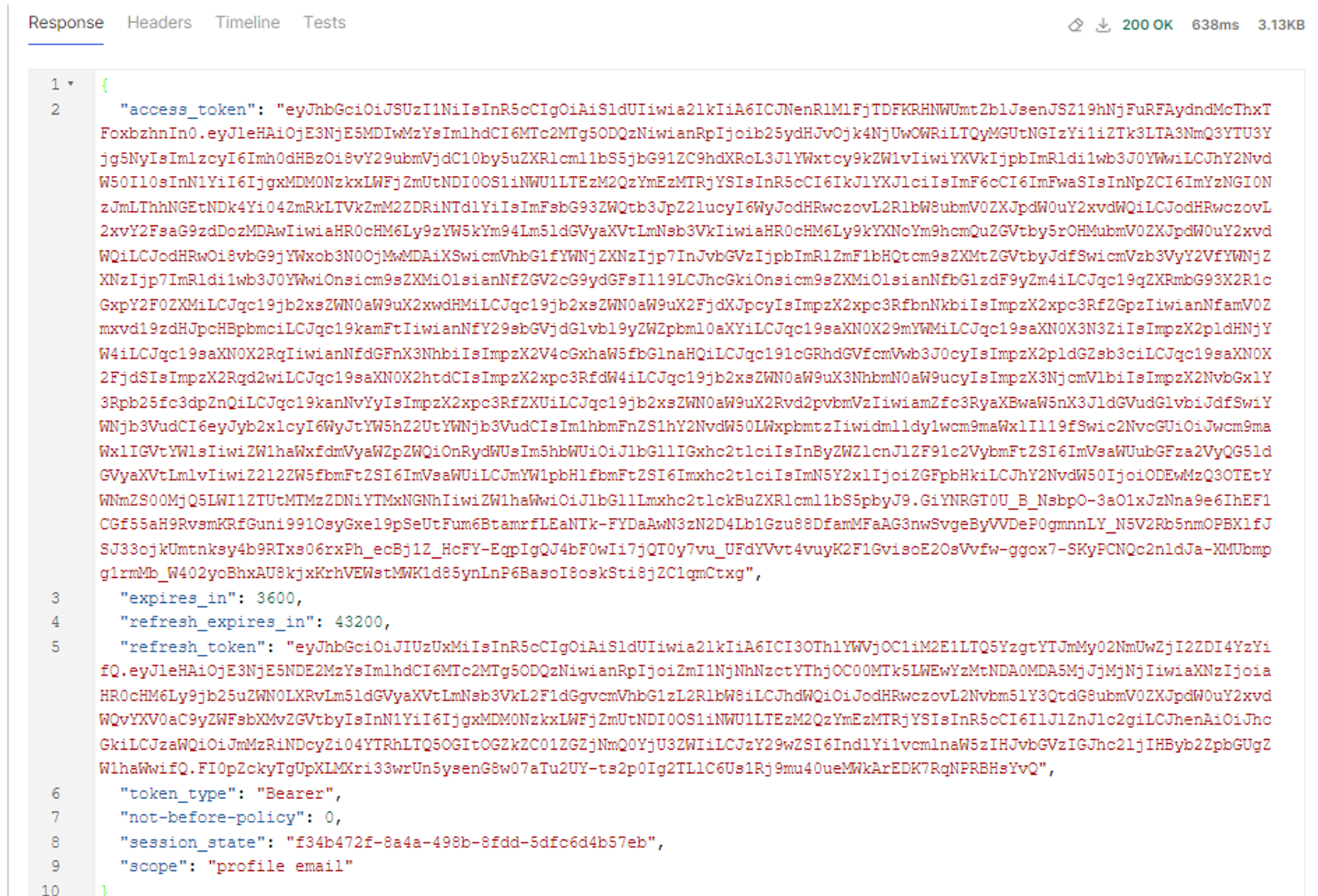
The access token appears in the first part of the response and is valid for 1 hour (3,600 seconds). The token is now also stored in the access_token environment variable. Note that in addition to the access token, the response also contains the refresh_token. This latter token is covered in the next step, API integration best practices.
Sending your first API screening requests
Once you have successfully authenticated, you are ready to send your first API request. As described above, Neterium provides two separate screening engines:
- Jetscan — used for entity screening
- Jetflow — used for transaction screening
The following examples demonstrate how to submit screening requests to each engine and how to interpret their response.
Screening an entity on Jetscan
To screen an entity, send the following request:
- HTTP method
- POST
- URL (endpoint)
https://demo.neterium.cloud/api/v1/jetscan/screen/sanctions- Header
content-type: application/json- Data
- JSON payload (see below)
The term “sanctions” (in the URL) refers to a collection of public regulatory watchlists (e.g. EU, HMT, OFAC) that are available in our sandbox environment for testing and evaluation purposes only. Once your organization becomes a Neterium customer, you will be able to select and screen against the watchlist(s) of your own third-party vendor(s).
Payload
The payload should be formatted using a JSON syntax. It contains 3 blocks:
- context — optional: allows you to include contextual data for the request (e.g. references). This information is also returned in the screening response, facilitating routing and reconciliation.
- options — optional: allows you to define specific screening option values for a given request. Each option has a predefined default, so including the options block is optional.
- records — required: contains the actual entity records to be screened. Up to 1,000 records can be in a single screening request.
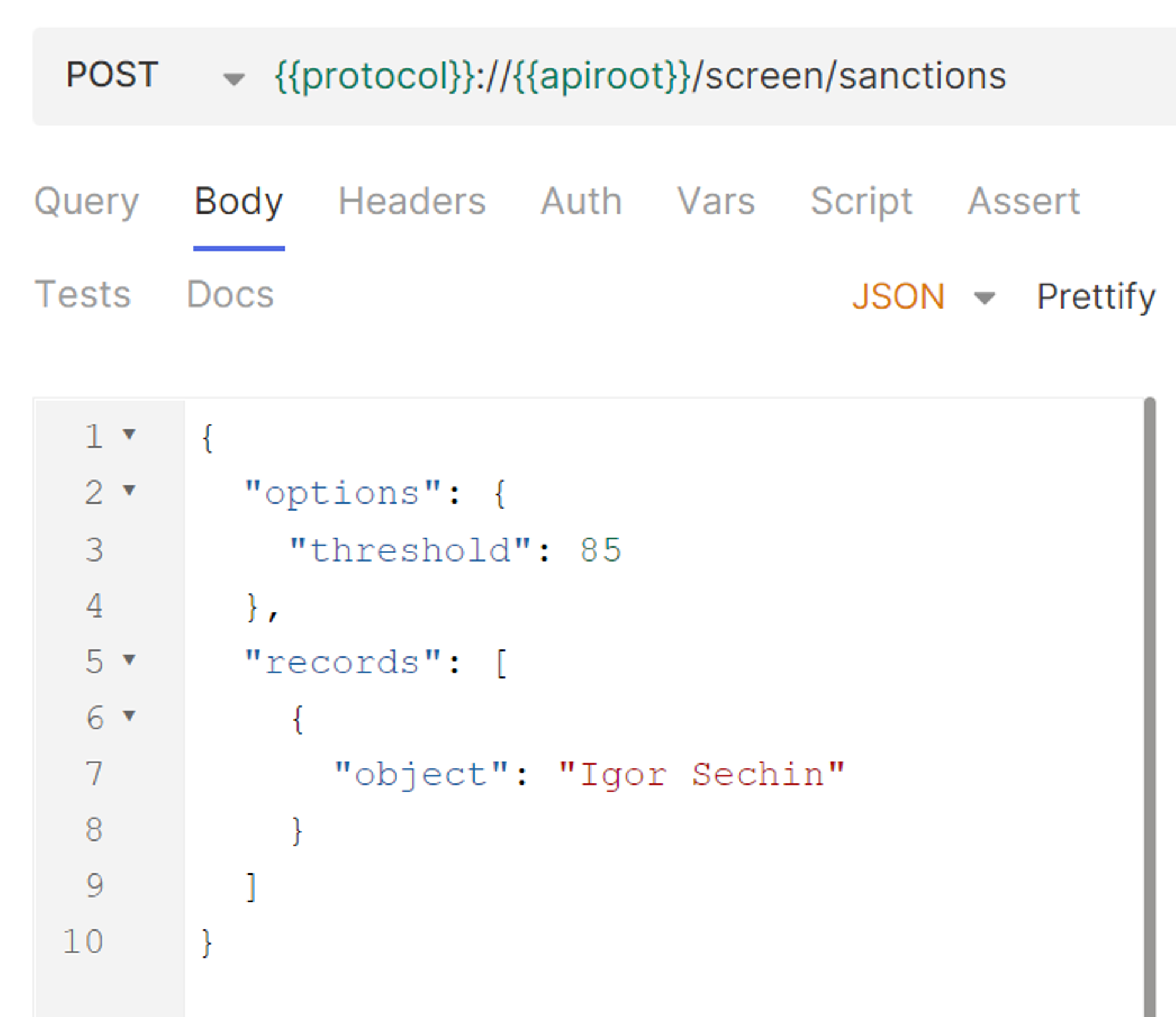
The example below shows a payload with an options block and a records block that contains a single object. Only a few elements are included in both blocks to keep the example concise and easy to follow. You'll also notice that the (optional) context block is missing: it's been left out intentionally for clarity. The complete information on the API structure and its contents can be found in the API specification on the Portal.
{
  "options": {
    "threshold": 85
  },
  "records": [
    {
      "object": "Igor Sechin"
    }
  ]
}
To screen the above payload using your API testing tool:
- Create a new Request
Within the same Collection as the one defined for the Authentication Request.
- Specify the method, URL and payload
Specify the (POST) HTTP method and URL as described above, and paste the payload in the Body tab.
- Configure the authentication
Ensure that the Auth tab is configured to use Bearer Token authentication, and specify the
access_tokenenvironment variable that stores your access token.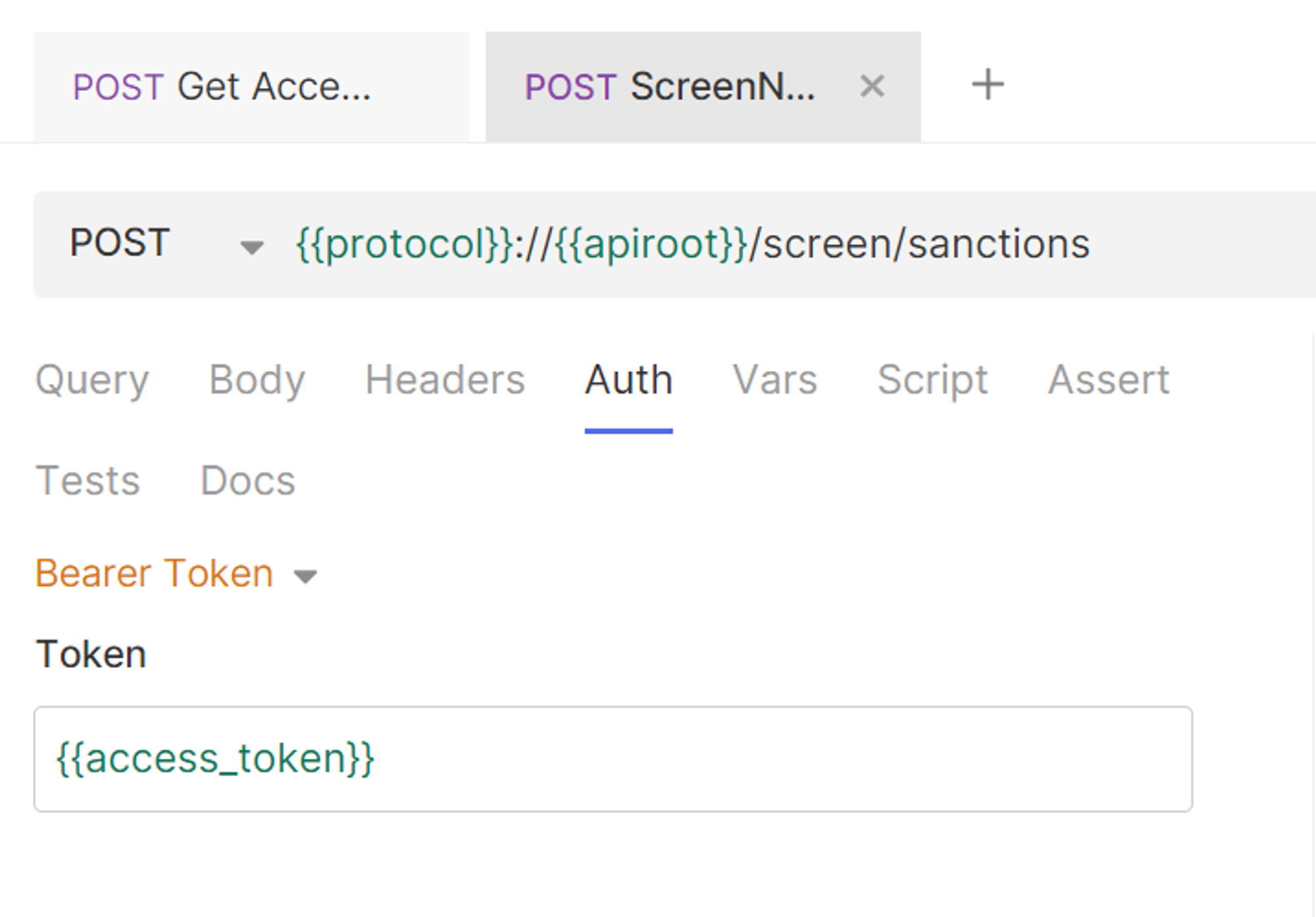
Click Send. You'll see the API response appear on your screen, similar to the example below. (We've divided the response into several parts to make it easier to understand.)
The remainder of this section focuses on the key blocks, records, and fields contained in the response. A complete description of the response structure and all available fields is provided in the API specification.
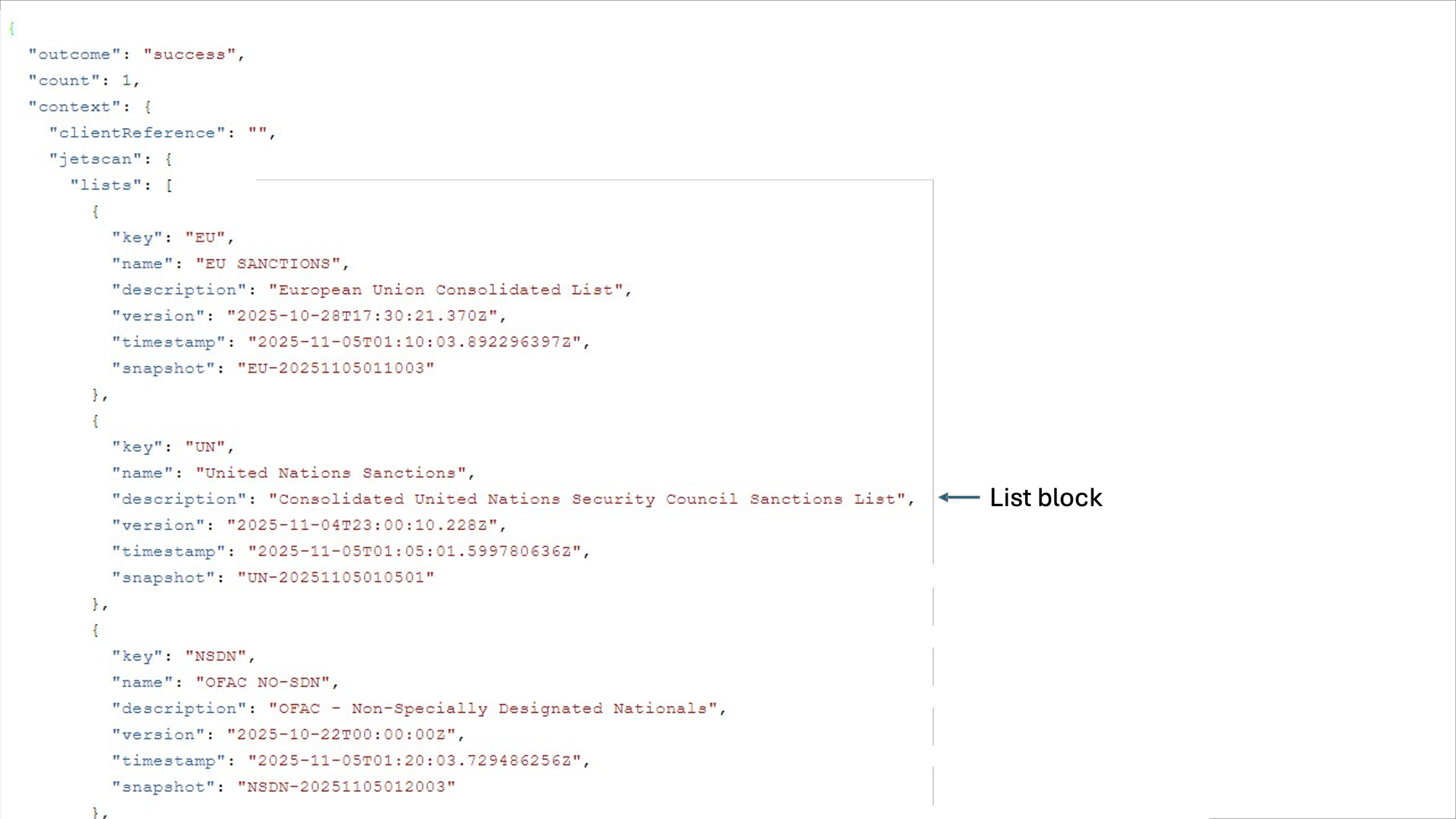
The start of the API response contains a lists block displaying all the lists against which the request was screened. The example below shows the beginning of this block with the EU Sanctions, United Nations Sanctions and OFAC NO-SDN lists.
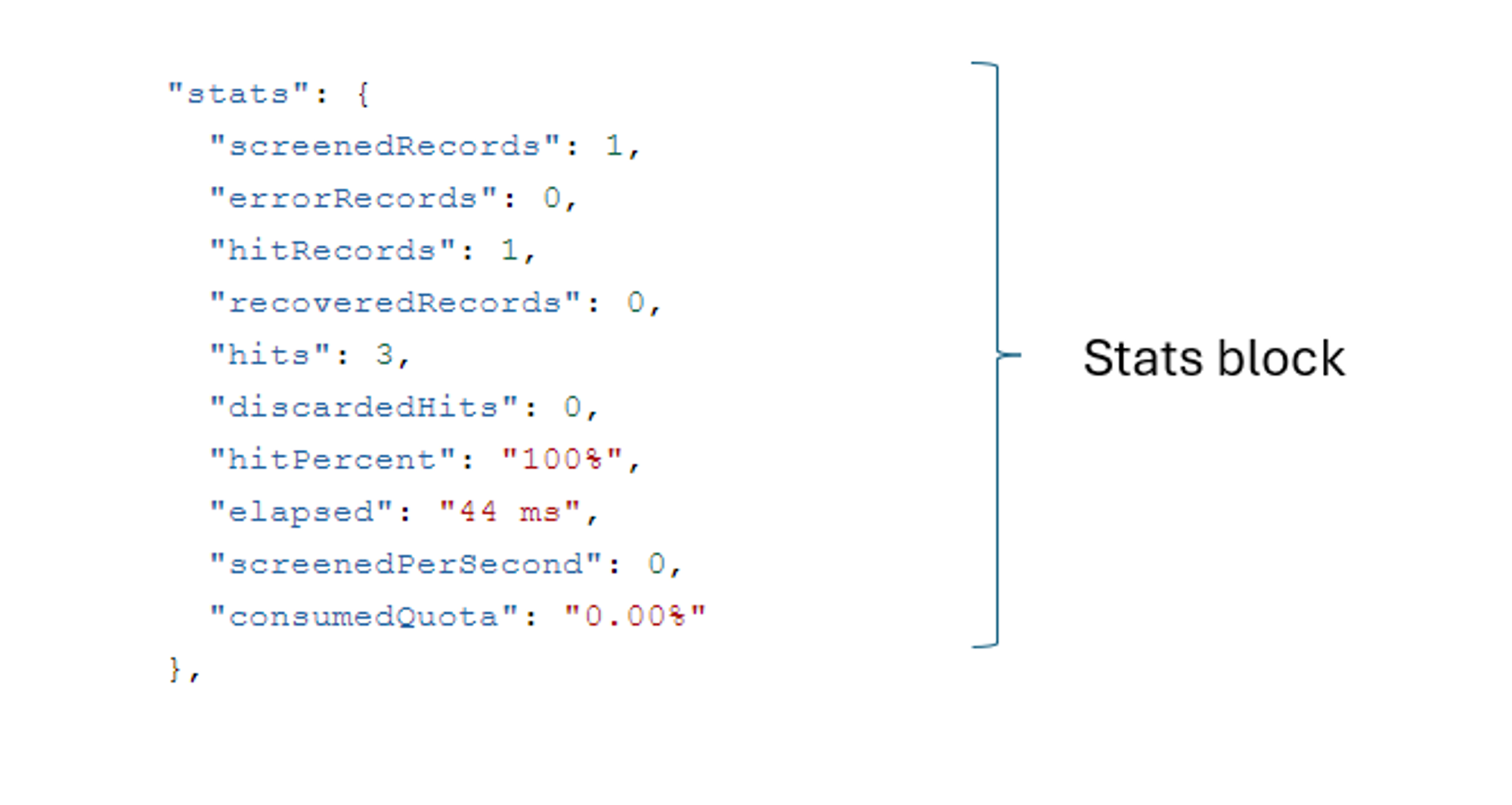
The following stats block displays key numerical indicators, including the number of screened records, hit records, and total generated hits. In this block the most important value is hits, as it gives an immediate indication if there is a hit or not. Ifhits is zero, it means the entity information passed does not match with any sanctioned entity in the lists used in the request. In the example below, hits = 3, meaning there are 3 hits for the same individual (in one or multiple lists).
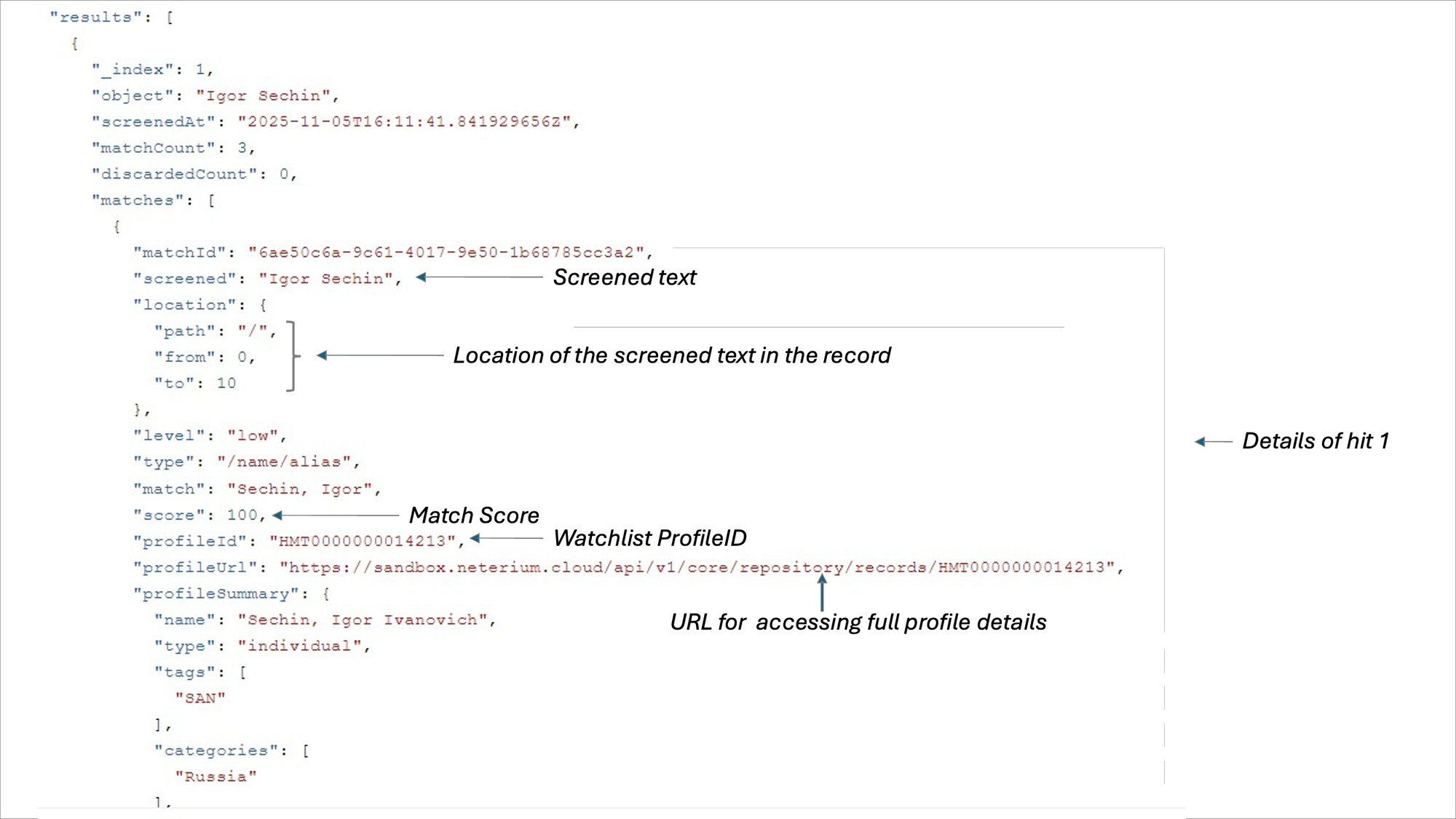
The next block is the main results block, which contains the detailed outcome of the screening. Within it, the matches block appears as an array of elements, each representing a detected hit. The example below shows the beginning of the first element (i.e._index: 1) and highlights several key fields:
- The original screened text extracted from the request.
- The location of the screened text within the record, including the position indexes of the first (
from) and last character (to) on the corresponding line. - The match score.
- The reference to the
profileIdin the watchlist. - The
profileUrllinking to the full profile details (note: the contents of this profile can be retrieved using a separate API call).
- Scrolling further down in the response reveals additional summarized information about the watchlist profile matched, in the
profileSummarysection. Detailed information for this profile can be retrieved using a dedicated API call. - The final block is the
analyticsblock, which contains information that can be extracted and leveraged by a case management application to refine the risk assessment associated with the corresponding hit. Additional details about this block and the overall response structure can be found in the API specification.
Next steps
You are now familiar with how to screen a basic Jetscan request. Using this example, you can modify or enrich its contents to explore the behavior of the screening engine. For a complete overview of all available features and options, please refer to the API specification.
Things you could try out:
- Adapt the value of the threshold to lower or higher.
- Add metadata to the record (e.g. date of birth).
- Set the
metaScoreoption to true (after adding metadata). - Try the different policies (
dobPolicy,countryPolicy).
Finally, you are also welcome to download a Postman collection from our Portal, which contains an extensive set of Jetscan and Jetflow API request examples. To access the collection, log into the Portal and navigate to Resources, Postman, Postman Screening Collection.
Postman collections can be directly imported in Bruno.
Screening a payment transaction on Jetflow
If you have not done so already, please make sure you read the previous “Screening an entity on Jetscan” section before proceeding. Many concepts introduced there are referenced and reused in this section and are not repeated for the sake of conciseness.
To screen a payment, send the following request to the Jetflow screening engine:
- HTTP method
- POST
- URL (endpoint)
https://demo.neterium.cloud/api/v1/jetflow/screen/sanctions- Header
content-type: application/json- Data
- JSON payload (see below)
Payload
The structure of a Jetflow payload is identical to that of a Jetscan payload: it follows a JSON syntax and contains context, options and records blocks.
The example below shows a payload containing context, options, and records blocks, where the records block includes a single object representing one transaction. For simplicity and conciseness, the number of parties in the screening request has been limited (e.g. additional parties such as the debtor, debtorAgent, or other intermediaries could also be included). Similarly, as in the Jetscan example, the number of parameters in the options block has been reduced for clarity.
{
  "context": {
    "reference": "ORDERREF1234"
  },
  "options": {
    "threshold": 90
  },
  "records": [
    {
      "reference": "56372REFOFTRX2",
      "object": {
        "currency": "CNY",
        "amount": "10000.00",
        "creditor": {
          "name": "Ho Jong Son",
          "account": {
            "id": "00072583"
          },
          "PostalAddress": {
            "text": "88 Huaihai Middle Road Shanghai CN"
          }
        },
        "creditorAgent": {
          "ids": [
            {
              "type": "BIC",
              "value": "BKCHCNBJXXX"
            }
          ]
        }
      }
    }
  ]
}
To screen the above payload using your API testing tool, follow the same steps as described in the previous “Screening an entity on Jetscan” section:
- Create a new Request.
- Specify the HTTP method and endpoint (different from the Jetscan endpoint):
POST {{protocol}}://{{apiroot}}/jetflow/screen/sanctions - Paste the above payload in the Body tab.
- Verify that the Auth tab is configured to use Bearer Authentication, and provide the environment variable name (
access_token). - At this stage ensure you save the entered Request.
- Click Send to submit the request.
Make sure your authentication token is still valid. You may need to resend the previously created Authentication Request first.
The response you receive will have a structure similar to the Jetscan response described in the previous section. It includes lists, stats, and results blocks, with the first two containing largely overlapping information. Therefore, the focus below is on some additional features of the results block, illustrated through this example.
Note the full path of the field (e.g. /creditor/name) as provided in the response.
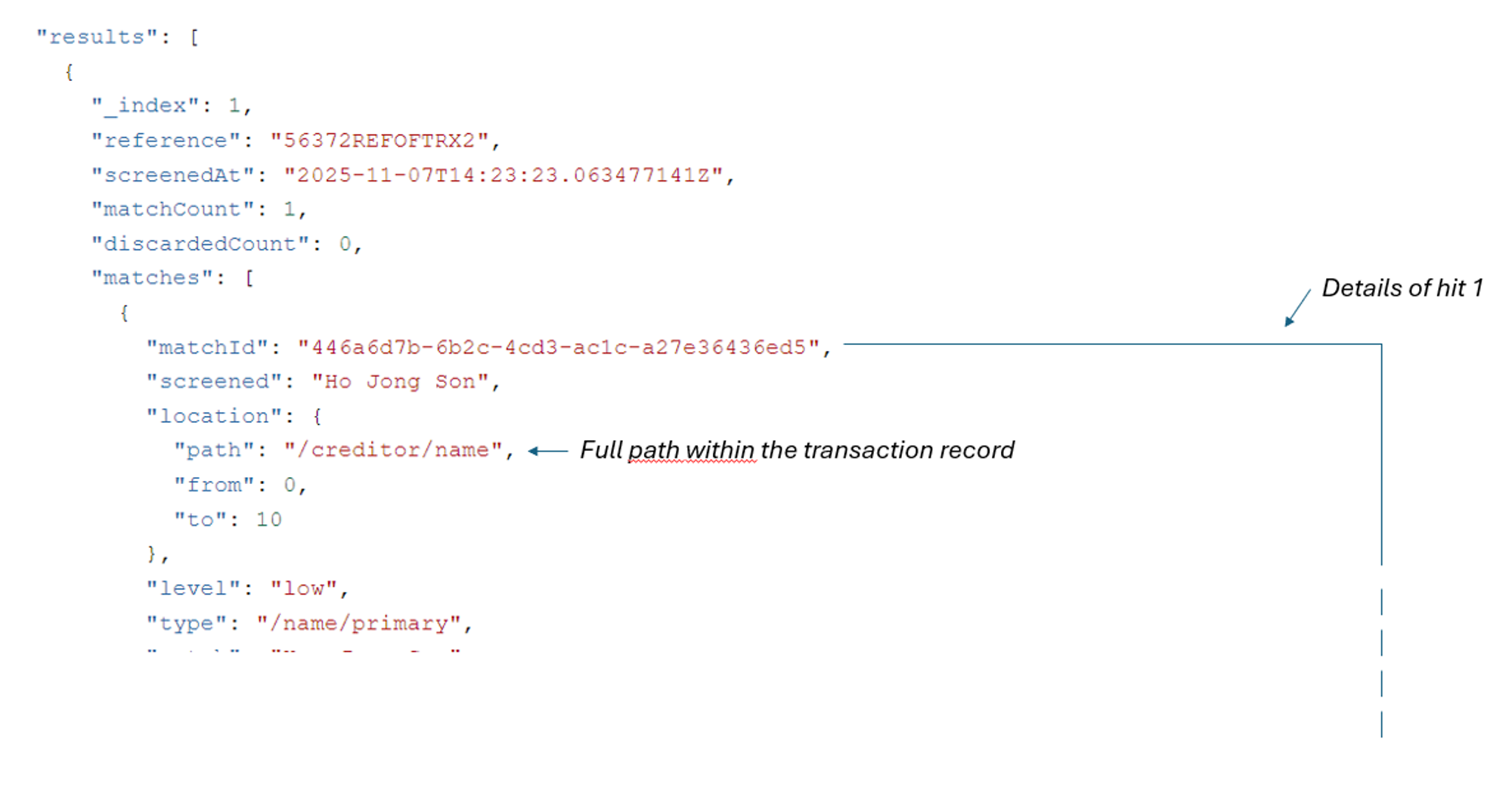
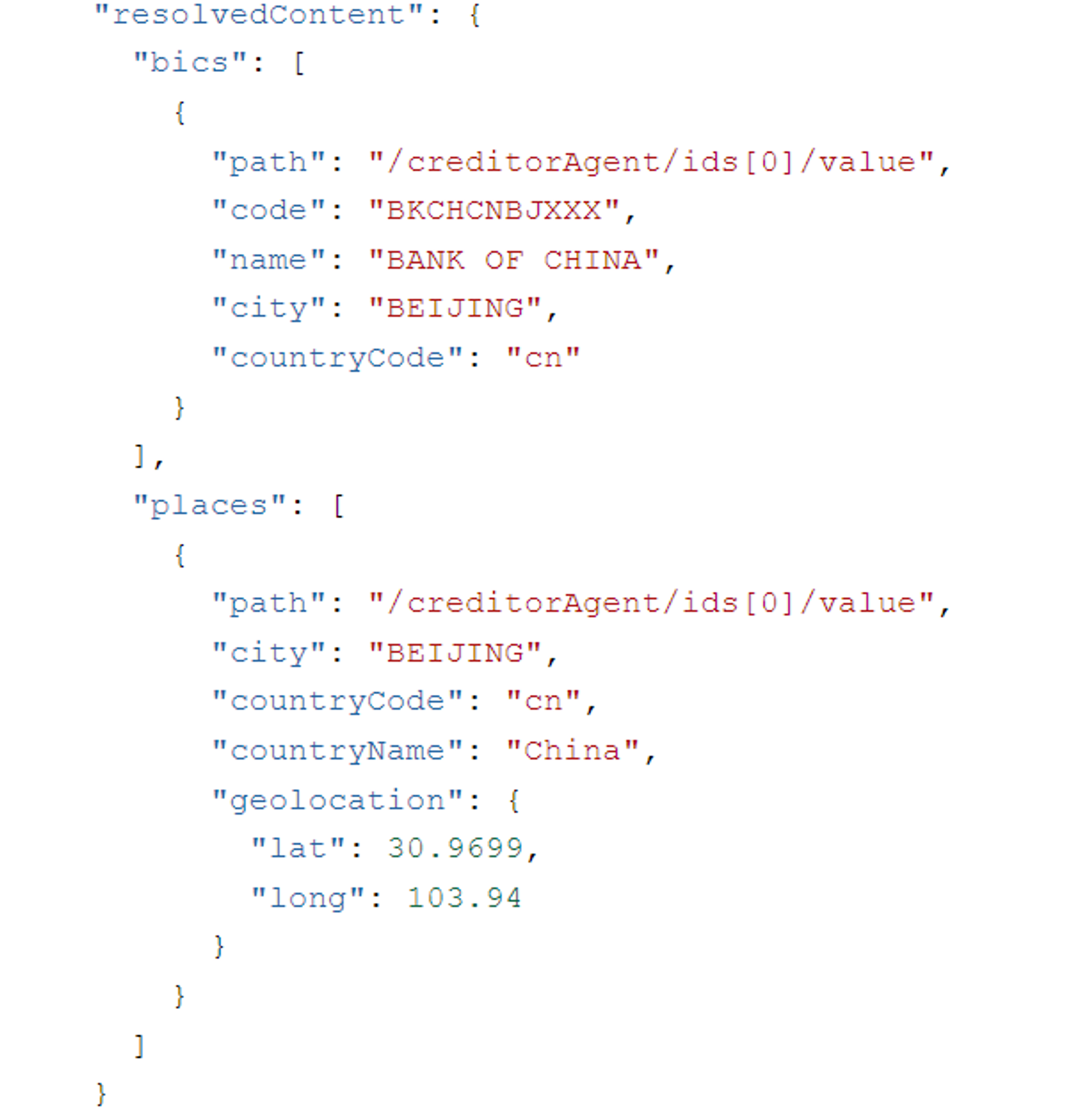
At the end of the hit block, you will find a resolvedContent section, which includes the resolution of the BIC found in the creditorAgent field (in the screening request), as well as the locations (i.e. country and city) extracted from the text address line (PostalAddress) of the screened record.
Next steps
You are now familiar with how to screen a basic Jetflow request. Using this example, you can modify or enrich its contents to explore the behavior of the screening engine. For a complete overview and explanation of all available features and options, please refer to the API specification.
You can begin by experimenting with the suggestions listed in the “Next steps” section for Jetscan (e.g. adjusting the threshold or introducing metaScore), as these are also applicable to Jetflow. In addition, you can explore features that are more specific to Jetflow:
- Add additional parties to a record (e.g.
debtor,ultimateDebtor,debtorAgent,intermediaries). - Add
geoPolicyin the options block. - Enable the
geoScoreand thegeoThresholdoptions.
Finally, as mentioned for Jetscan, the Postman collection (importable in Bruno) posted on our Portal contains an extensive set of Jetflow API request examples. To access the collection, log into the Portal and navigate to Resources, Postman, Postman Screening Collection.
Exceptions
Exceptions in Neterium are post-screening rules applied after a hit has been identified. They execute additional logic to further refine screening accuracy by helping determine whether a hit should be considered a true hit or dismissed.
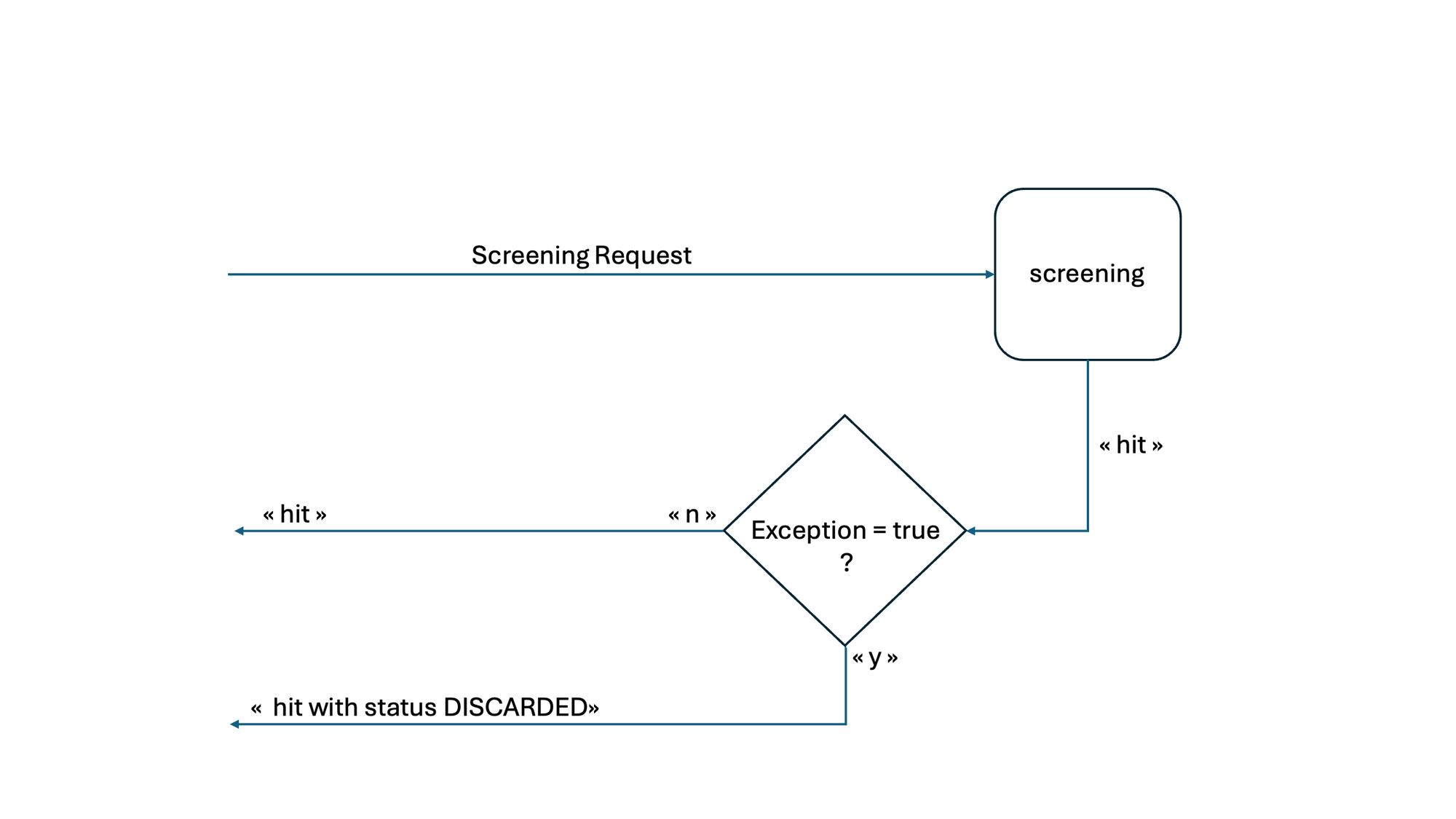
When a hit meets the conditions of an exception, it is reported with the status DISCARDED, ensuring full visibility for audit and traceability purposes.
Exceptions are configured via an API call to a dedicated endpoint (see below).
There are two types of exceptions:
Specific exceptions: these are typically used to define “whitelist” entries. As such, they are linked to a specific profileId. For example:
{
  "exceptions": [
    {
      "reference": "T3",
      "profileId": "OFAC000000008124",
      "match": "2904977 Canada Inc.",
      "source": "canada"
    }
  ]
}
This exception will exclude a “hit” if:
- The matched profile id is OFAC000000008124
- The matched name or alias of this profile is “2904977 Canada Inc.”
- The screened string is “canada”
Generic exceptions: such exceptions are not linked to a specificprofileId. For example:
{
  "exceptions": [
    {
      "reference": "VSL1",
      "profileId": "",
      "conditions": {
        "profileSummary/tags": "VSL",
        "location/path": "/debtor/text"
      }
    }
  ]
}
This exception will exclude any hit that matches the following 2 conditions:
- The matched profile is tagged as a “vessel”
- The match is found in the
/debtor/textfield
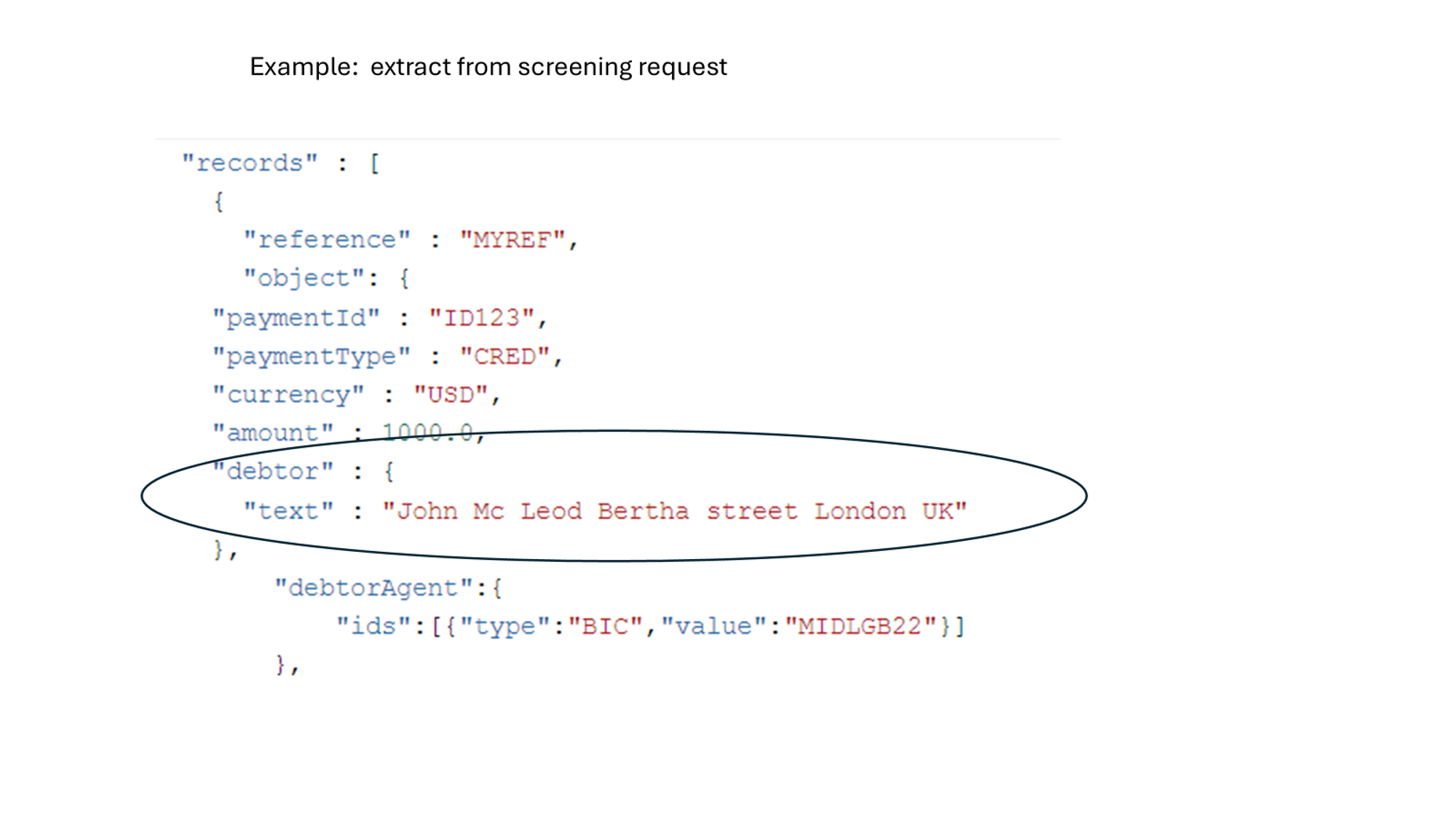
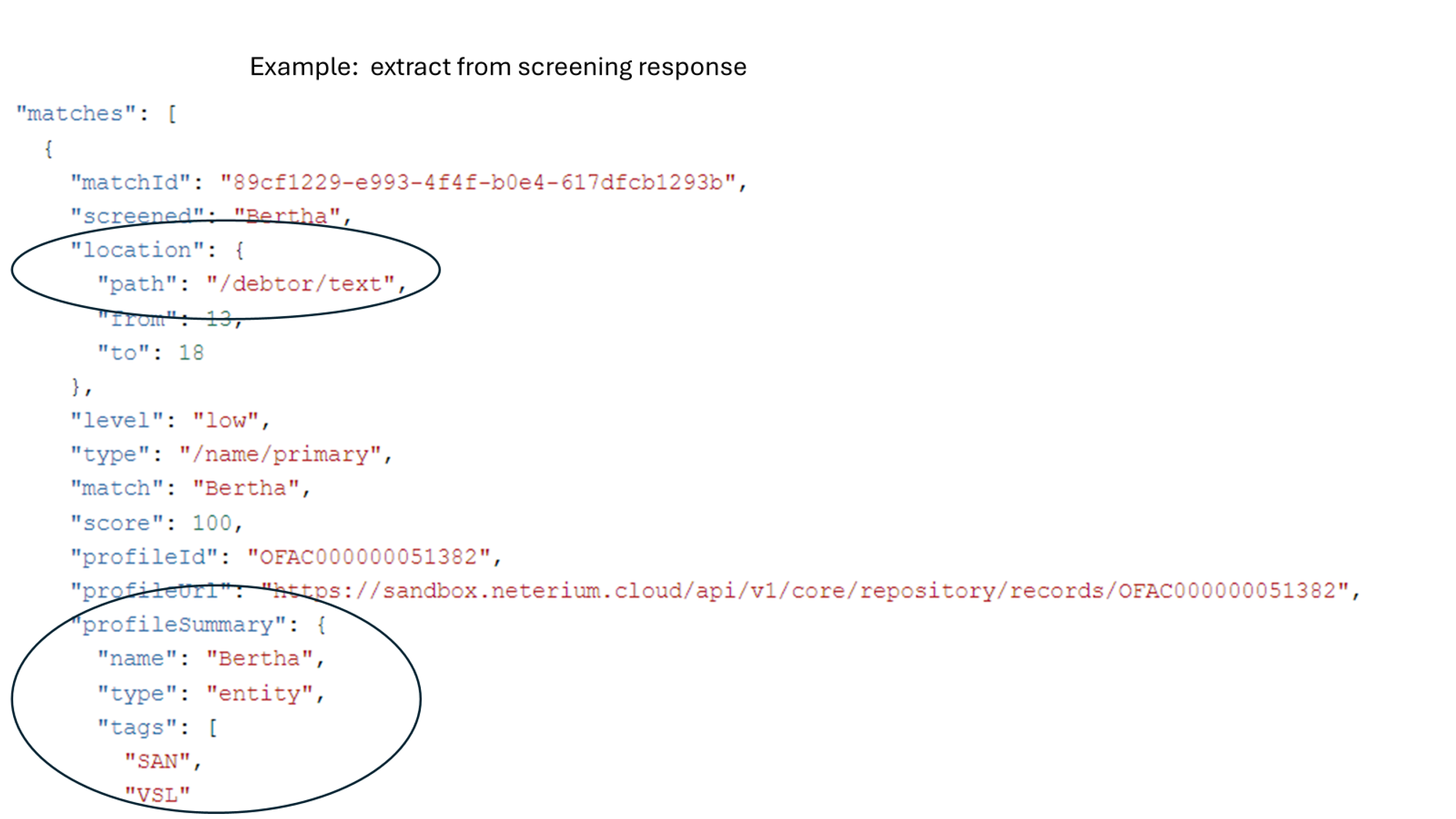
For clarity, the above exhibit features extracts from the screening request that generated a “hit” on “Bertha” (a sanctioned vessel), together with relevant excerpts from the API response. These excerpts show the field paths (e.g. location/path,profileSummary/tags) and the corresponding values used in the above conditions block to discard this hit.
Exception conditions
Exception conditions can be defined based on the contents of both the original API request and the API response. They can be built using a set of operators (e.g. >,between, contains) and functions (e.g. hasAmountNearby(),hasCityNearby()) as illustrated in the examples below.
Example 1
"conditions": [
  "transaction.amount between [1, 10]"
]
This condition leverages the between operator and will be true if the amount field in the original API screening request contains a figure between 1 and 10.
Example 2
This example illustrates the use of a regex expression in the value field of a condition which checks whether the profileId is a Dow Jones one (i.e. the profileId must start with “DJ”).
"conditions": [
  {
    "path": "/match/profileId",
    "operator": "=",
    "value": "~^DJ[0-9]+$"
  }
]
Examples 1 and 2 illustrate the two ways in which exception conditions can be formalized. The “string” approach: the condition is expressed as a single-line string that includes the path, operator, and value. The “object” approach: the path, operator, and value are captured as separate elements within an object. Both approaches are supported, but they cannot be mixed within the same conditions array.
Note that string-based conditions additionally support Boolean operators. For example:
"transaction.amount between [1, 10] AND transaction.currency='USD'"Example 3
The following example illustrates the use of the hasCountryNearby() function in a condition applied to the transaction screening request below.
"conditions": [
  "hasCountryNearby() equals 'true'"
]
Transaction screening request (note: for clarity reasons this transaction screening request contains a reduced number of fields):
{
  "options": {
    "geoPolicy": { "policy1": { "countries": ["ir"] } }
  },
  "records": [
    {
      "object": {
        "purposeNoException": "Pay for Shiraz Wine",
        "purposeYesException": "To be sent to Shiraz IRAN"
      },
      "type": "transaction"
    }
  ]
}
The condition will be false for a hit on the field purposeNoException, because there is no country name near the city name “Shiraz” that originally generated the hit. Shiraz is located in the country “ir” (Iran), which is listed in thegeoPolicy in the options block of the screening request.
By contrast, this condition is met for the field purposeYesException.
Detailed information on exceptions and the available operators and functions is available in the documentation on the Portal.
Creating exceptions
To create an exception in the sandbox environment, send the following request to the screening engine:
- HTTP method
- POST
- URL (endpoint)
https://demo.neterium.cloud/api/v1/core/exceptions- Header
content-type: application/json- Data
- JSON payload (see below)
Payload
The structure of an exception follows a JSON syntax as illustrated above in the specific and generic exception examples.
To create an exception using your API testing tool, follow steps similar to the ones described in the previous “Screening an entity on Jetscan” section:
- Create a new Request.
- Specify the HTTP method and endpoint (different from the Jetscan endpoint):
POST {{protocol}}://{{apiroot}}/core/exceptions - Enter (or paste) your exception in the Body tab.
- Verify that the Auth tab is configured to use Bearer Authentication, and provide the environment variable name (
access_token). - At this stage ensure you save the entered exception.
Click Send to submit the request, further to which the exception will be uploaded on the Neterium platform.
Any Personally Identifiable Information (PII) contained in an exception is irreversibly hashed before being stored on our platform and is used exclusively in hashed form for comparison operations.
Next steps
Now that you are familiar with the concept of exceptions, we recommend that you further explore its features (operators, functions) in more detail in the exceptions documentation on the Portal.
How to contact us
- More information on our solutions and servicesinfo@neterium.io
- Full API documentationNeterium Developer Portal
- Follow usLinkedIn · X (Twitter)
- Integration supportProduct Experience team